Got your new IPTV Sub and not sure where to start? Don’t worry, it’s easier than setting up a new phone. This guide walks you through setting up your IPTV Sub on an Amazon Firestick, a Smart TV, an Android box, a phone, a tablet and a laptop. Most people are finished in five minutes, and if you get stuck at any point, our team will help you on WhatsApp.
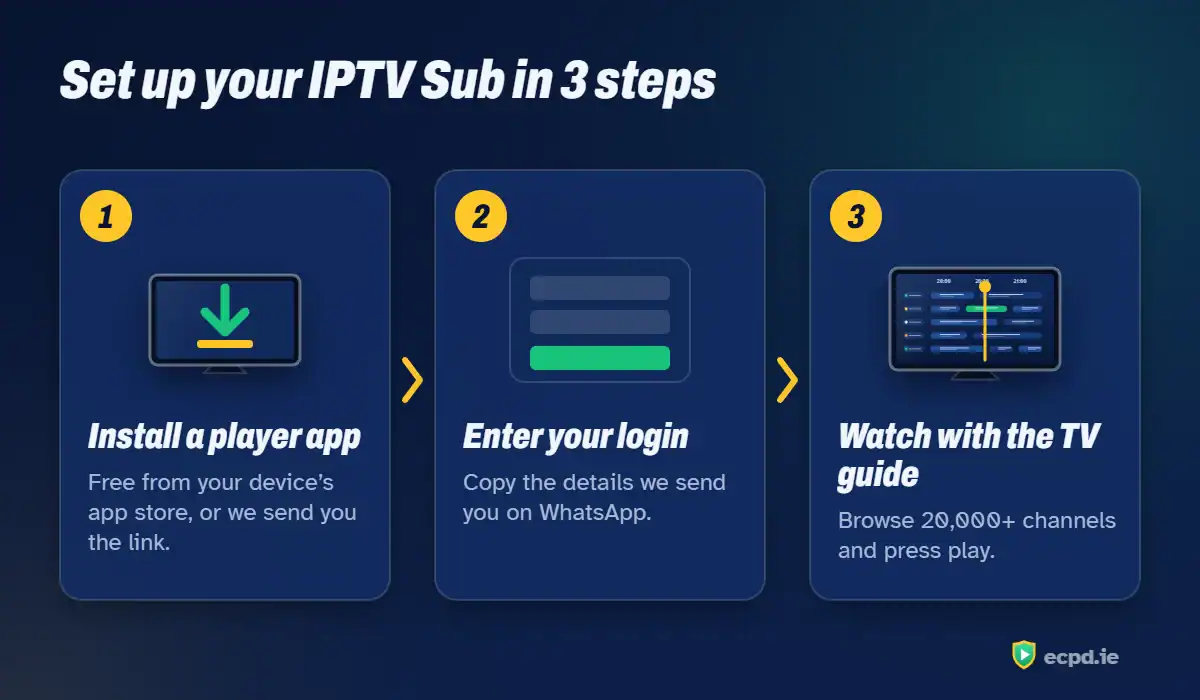
Before you start: what you need for your IPTV Sub
Whatever device you use, you need three things ready before you begin:
- Your login details. When you order an IPTV Sub from IPTV Ireland, we send these on WhatsApp in under 60 seconds. You get either a server address, username and password (often called an Xtream Codes login) or a single M3U playlist link.
- Your device, switched on and connected to the internet.
- A player app. This is the app that turns your login into a channel list with a TV guide. We will tell you which app suits your device best.
Tip: copy and paste your login straight from WhatsApp. Most “invalid login” errors come from a missing capital letter or an extra space.
How to set up your IPTV Sub on Amazon Firestick
The Firestick is the most popular device for IPTV in Ireland because it is cheap, small and plugs straight into your TV. Because most IPTV player apps are not in the Amazon Appstore, you install them with a free app called Downloader.
- On the Fire TV home screen, go to Find > Search, type Downloader and install it.
- Go to Settings > My Fire TV > About and click your device name seven times to unlock Developer Options.
- Go back to My Fire TV > Developer Options > Install unknown apps and turn it on for Downloader.
- Open Downloader and type in the app link we send you on WhatsApp. Install the player app when it finishes downloading.
- Open the player app, choose the login type that matches your details and enter your server, username and password (or paste your M3U link).
- Wait a minute while the channels and TV guide load, then press play.
On older Firesticks, the menu may say Apps from Unknown Sources instead of Install unknown apps. It does the same job.
How to set up your IPTV Sub on a Smart TV
Samsung and LG Smart TVs
Samsung and LG TVs use their own app stores. Open the store on your TV, search for the player app we recommend, install it and open it. Some apps show a device ID or MAC address on screen; if yours does, send us a photo on WhatsApp and we will link your IPTV Sub to it. Otherwise, just type in your login.
Android TV and Google TV sets
Sony, Hisense, TCL, Philips and many other TVs run Android TV or Google TV. Open the Google Play Store, install the player app, open it and enter your login. It takes about two minutes.
How to set up your IPTV Sub on an Android TV box
Android boxes work just like Android TVs. Open the Play Store (or use the app link we send), install the player, enter your login and you are ready. Android boxes are a great way to give an older TV a new lease of life, as long as it has an HDMI port.
How to set up your IPTV Sub on a phone or tablet
- Android phones and tablets: install the player app from the Google Play Store, open it and enter your login.
- iPhone and iPad: install a compatible player from the App Store, open it and add your playlist or login.
Phones are perfect for watching in the kitchen, the garden or on the train. Remember that one IPTV Sub plays on one screen at a time, so pause the TV before you start watching on your phone.
How to set up your IPTV Sub on a laptop or PC
On Windows or Mac, you can install a desktop player app and enter your login, just like on a phone. If you have an M3U link, the free VLC media player also works: open VLC, choose Media > Open Network Stream, paste your link and press play.
Finding your way around: the TV guide (EPG)
Once you are logged in, you will see your channels sorted into groups such as Ireland, UK, Sport, Films and Kids. The TV guide, also called the EPG, shows what’s on now and next on each channel, so you can plan your evening the same way you would with a normal TV box.
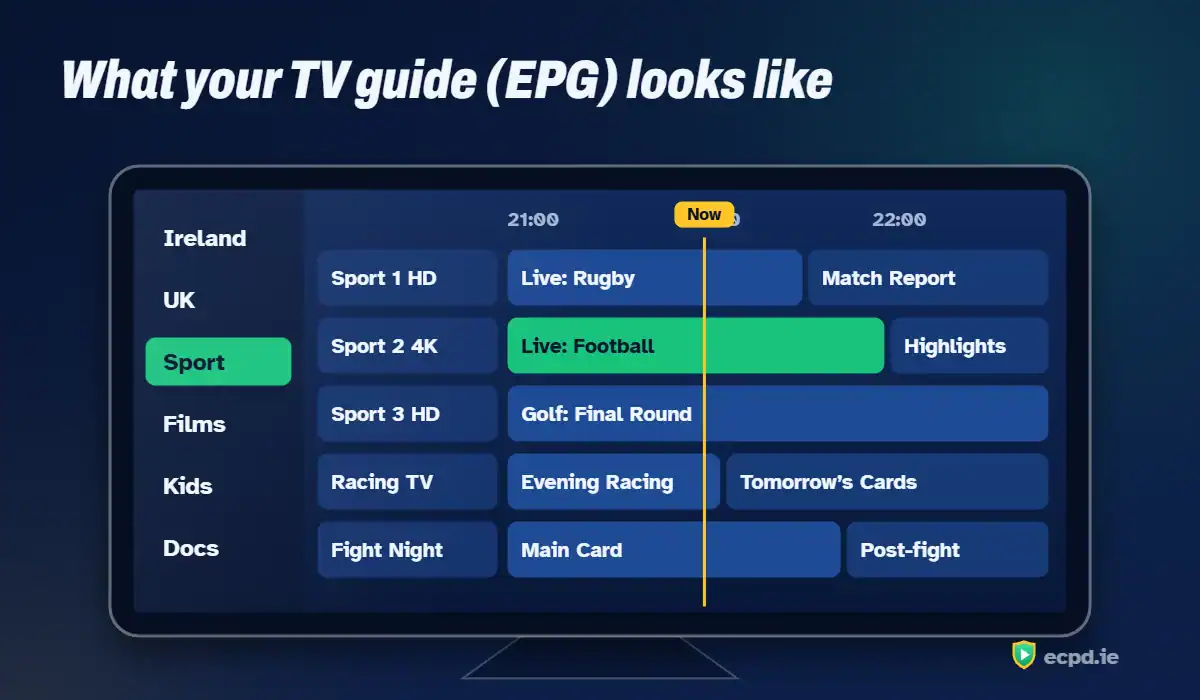
If the guide looks empty the first time, give it a few minutes, or go into the app settings and tap Update EPG. It usually fills up on its own.
Tips for the best picture after setup
- Power your Firestick or box from the plug adapter in the box, not the TV’s USB port, so it never runs short of power.
- If your stick came with an HDMI extender, use it. Moving the stick away from the back of the TV can improve the Wi-Fi signal.
- Choose the 4K version of a channel only if your broadband gives you 25 Mbps or more. Otherwise, Full HD looks great and loads faster.
- Restart your device once a week to clear its memory and keep everything running smoothly.
Common IPTV Sub setup problems (and quick fixes)
| Problem | Quick fix |
|---|---|
| “Invalid login” message | Copy and paste your details from WhatsApp and check for spaces and capital letters. |
| Channels load but no TV guide | Open the app settings and update the EPG, then wait a few minutes. |
| Picture freezes or buffers | Restart your router and device, or use a cable or 5 GHz Wi-Fi. |
| App won’t install on Firestick | Check that Install unknown apps is turned on for Downloader. |
| Works on one TV but not another | One IPTV Sub plays on one screen at a time. Stop the other stream first. |
If you still see freezing after these fixes, our guide to fast IPTV without buffering has nine more tips that work on any device.
Stuck on a step?
Send us a photo of your screen on WhatsApp and we will get you watching in minutes, day or night.
IPTV Sub setup FAQ
How long does it take to set up an IPTV Sub?
Usually about five minutes. On a Firestick it can take ten the very first time, because you install Downloader first.
Can I put my IPTV Sub on more than one device?
Yes. You can install it on your TV, your phone and your laptop. Just remember that it plays on one screen at a time.
Do I need to set it up again after a power cut?
No. Your login is saved in the app. If the channels don’t appear, close the app and open it again.
Which player app is best?
It depends on your device. Tell us what you have on WhatsApp and we will recommend the best app for it.
You’re all set
That’s it: your IPTV Sub is ready to enjoy on every screen in the house. If you have not ordered yet, have a look at our IPTV subscription prices or try us first with a free 30-minute trial. Enjoy the telly!