Nothing ruins a match faster than a spinning wheel at the exact moment of a goal. The good news is that most buffering problems have simple fixes, and many take less than a minute. This guide explains why IPTV freezes and gives you nine fixes, in order, for fast IPTV with a smooth, sharp picture on your Smart TV, Firestick, phone or laptop.
Why does IPTV buffer?
IPTV streams live video over your broadband, so anything that slows that connection down can cause freezing. There are four usual suspects:
- Your broadband speed. Too little speed for the picture quality you are watching.
- Your Wi-Fi. Walls, distance and busy neighbouring networks all weaken the signal.
- Your device. Older sticks and boxes with a full memory struggle to keep up.
- The server. Cheap providers pack too many people onto one server, so it slows down at busy times.
The first three are in your hands, and the fixes below sort most of them out. The fourth is about choosing a provider with a premium server.
Step one: check your speed
Before you change anything, find out what speed you are really getting. Run a test on Speedtest from the device you watch on, at the time you usually watch, not on your phone in another room. Then compare the result with this guide:
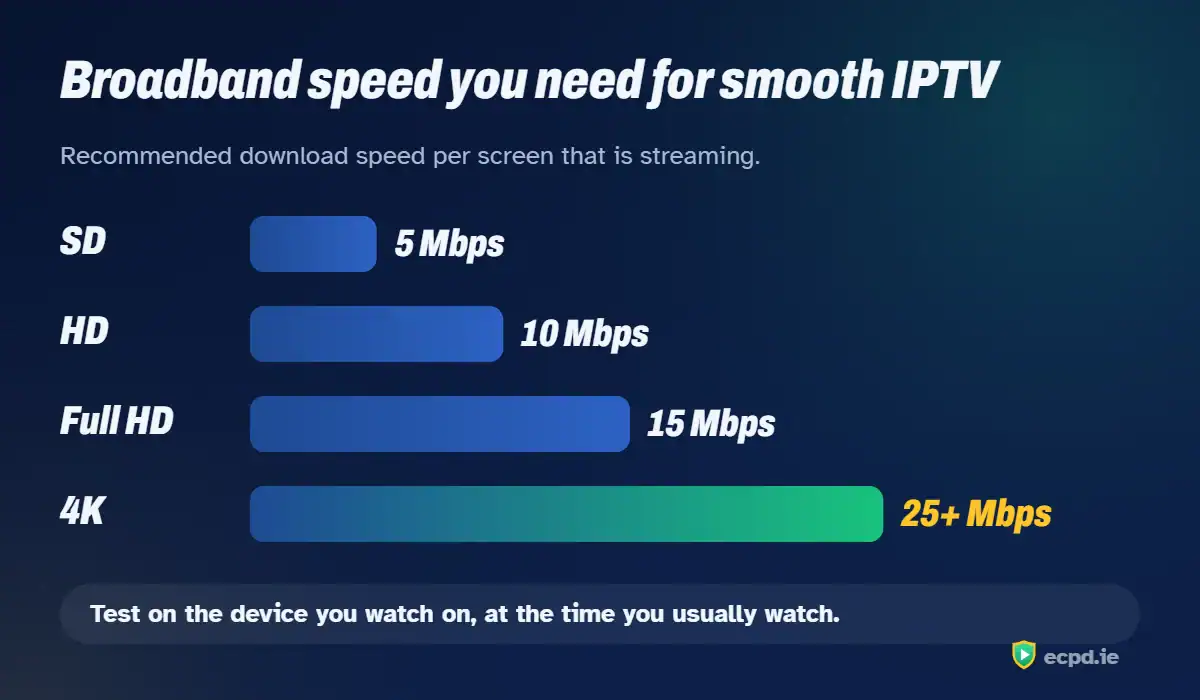
If you are getting less than 10 Mbps, start with fixes 1, 2 and 6. If your speed is fine but the picture still freezes, the problem is more likely your device, your Wi-Fi or the server.
9 fixes for fast IPTV without buffering
1. Restart your router and your device
It sounds too simple, but it works. Unplug your router and your TV stick or box, wait 30 seconds and plug them back in. This clears temporary glitches and frees up memory. Do it once a week as a habit.
2. Use a cable instead of Wi-Fi
An Ethernet cable from your router to your TV or box is the single best upgrade for fast IPTV. It gives you a steady connection that walls and neighbours can’t interfere with. Many Smart TVs and Android boxes have a network port, and you can buy an Ethernet adapter for a Firestick.
3. Switch to 5 GHz Wi-Fi or move your router
If a cable isn’t possible, connect to the 5 GHz network on your router. It is faster and less crowded than 2.4 GHz, although it doesn’t travel as far. Keep the router up high, in the open and as close to the TV as you can, not hidden in a press or behind the telly.
4. Clear the player app’s cache
Over time, IPTV apps store temporary data that slows them down. On Android TV, Firestick and Android boxes, go to Settings > Applications, choose your player app and tap Clear cache. Don’t tap Clear data, as that removes your login.
5. Free up space on your device
Sticks and boxes have very little storage. Uninstall apps you never use and close apps running in the background. A device with free memory handles live streams far better.
6. Lower the quality on a slow line
If your speed is limited, watch the HD or Full HD version of a channel instead of 4K. A smooth HD picture always beats a 4K picture that freezes every few minutes.
7. Switch on the VPN at busy times
Some internet providers slow down video traffic during peak hours. A VPN hides what kind of traffic you are using, which can help you get round those slowdowns. Every IPTV Sub from IPTV Ireland includes a VPN at no extra cost, so you don’t need to buy one separately.
8. Adjust your player settings
Most player apps let you change the decoder and the buffer size. If one channel keeps stuttering, try switching between hardware and software decoding, or choose a larger buffer. We are happy to talk you through these settings for your exact app on WhatsApp.
9. Choose a provider with a premium anti-freeze server
If you have tried everything above and the picture still freezes at busy times, the problem is almost certainly the server. Cheap services overload their servers, especially during big matches. Every IPTV Sub we sell runs on a premium anti-freeze server, the kind other sellers charge €60 to €65 a year for, and we sell 12 months for €49.99. That is the difference between hoping and knowing your stream will hold up.
Quick fix order
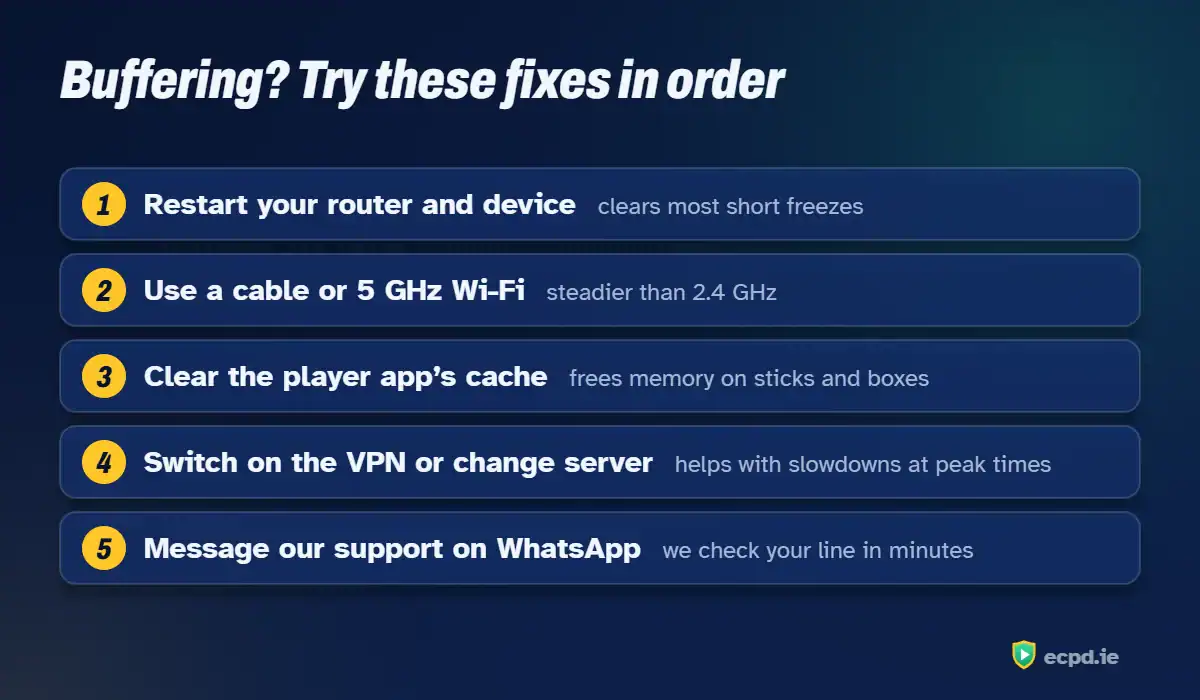
When the picture freezes in the middle of something important, work through this list from the top. Most people never need to go past step three.
Signs you have fast IPTV
Once everything is set up properly, you should notice the difference straight away:
- Channels open in one or two seconds.
- Live sport stays smooth, even on a busy Saturday afternoon.
- 4K channels look sharp on a big screen, with no blocky patches.
- The TV guide loads the moment you open it.
- The sound stays in sync with the picture.
If any of these is missing, go back through the nine fixes above, or send us a message and we will look into it with you. Fast IPTV should feel just like normal TV, only with far more to watch.
Fast IPTV on a Firestick: extra tips
The Firestick is the most popular IPTV device in Ireland, and a few extra habits keep it fast:
- Use the power adapter that came in the box, not a USB port on the TV.
- If your stick came with an HDMI extender, use it to improve the Wi-Fi signal.
- Turn off automatic app updates you don’t need and keep at least 1 GB of storage free.
- Restart it from Settings > My Fire TV > Restart once a week.
- Newer 4K models handle 4K channels much better than the oldest sticks, so consider an upgrade if yours is several years old.
Still buffering?
Message our support team on WhatsApp. We check your line, your device and your app settings, usually in minutes.
Fast IPTV FAQ
Why does IPTV freeze during football?
Big matches mean thousands of people watching at the same moment. Cheap servers can’t cope, and some internet providers slow video traffic at peak times. A premium server and a VPN solve most of this.
Does a VPN slow IPTV down?
A good VPN adds very little delay, and at busy times it can actually make your stream steadier by getting round slowdowns from your internet provider.
What speed do I need for 4K IPTV?
Aim for 25 Mbps or more for each screen streaming in 4K. For Full HD, 15 Mbps is plenty.
Is my problem the Wi-Fi or the service?
Test with a cable, or with your device right beside the router. If the freezing stops, it was your Wi-Fi. If it carries on at busy times, it is likely the server.
Enjoy fast IPTV without the stress
Most buffering comes down to a weak Wi-Fi signal, a tired device or an overloaded server. Restart, plug in a cable, clear your cache, and choose a provider that invests in premium servers. If you are not with us yet, test us with a free trial from our subscription page, see our IPTV subscription prices, or read the complete IPTV Ireland guide. Fast IPTV is closer than you think.